Every screenshot in this guide was taken by our Odoo team on 17 November 2026 from a live Odoo 19 Community database running Odoo’s demo data, so the company, customer and product names are Odoo samples. Menus and buttons are the same in your database.
Odoo Point of Sale runs in a web browser on a tablet, laptop or touch screen. Every sale updates stock and accounting when the session closes. Here is one complete shop day.
Step by step
1Open the register
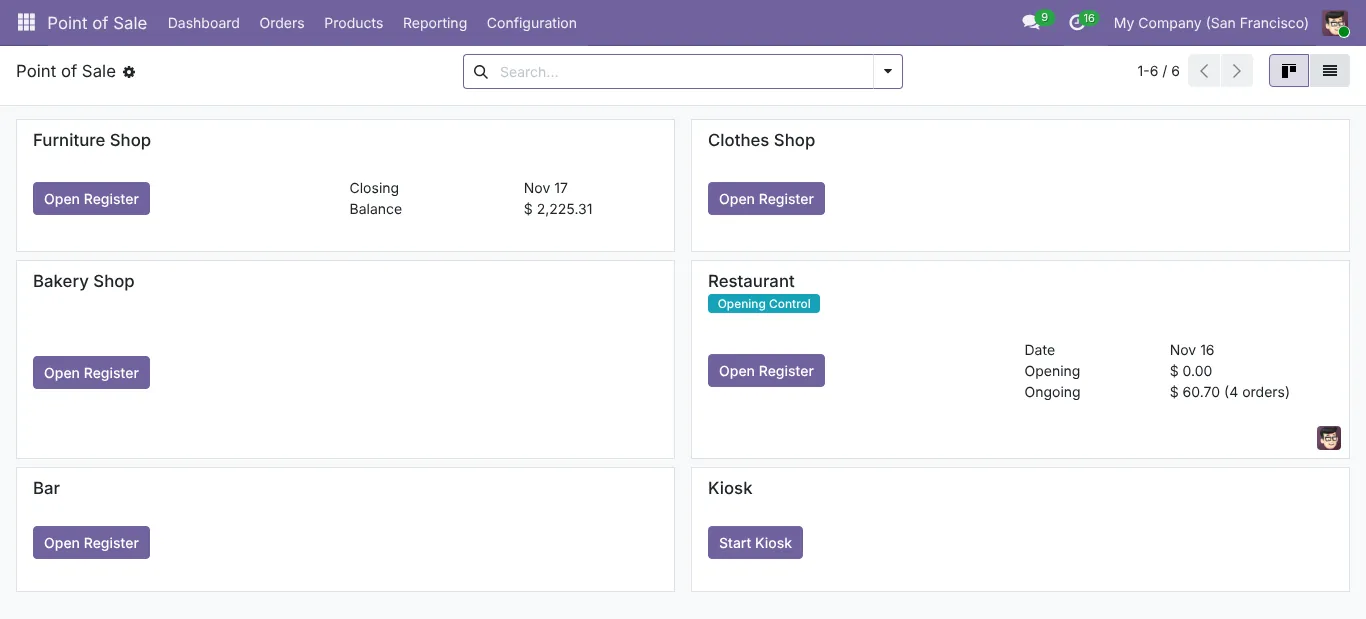
From the , each shop has its own card. Click Open Register. Odoo asks for the opening cash, pre-filled with what was left in the drawer at the last closing.
2Add products to the order
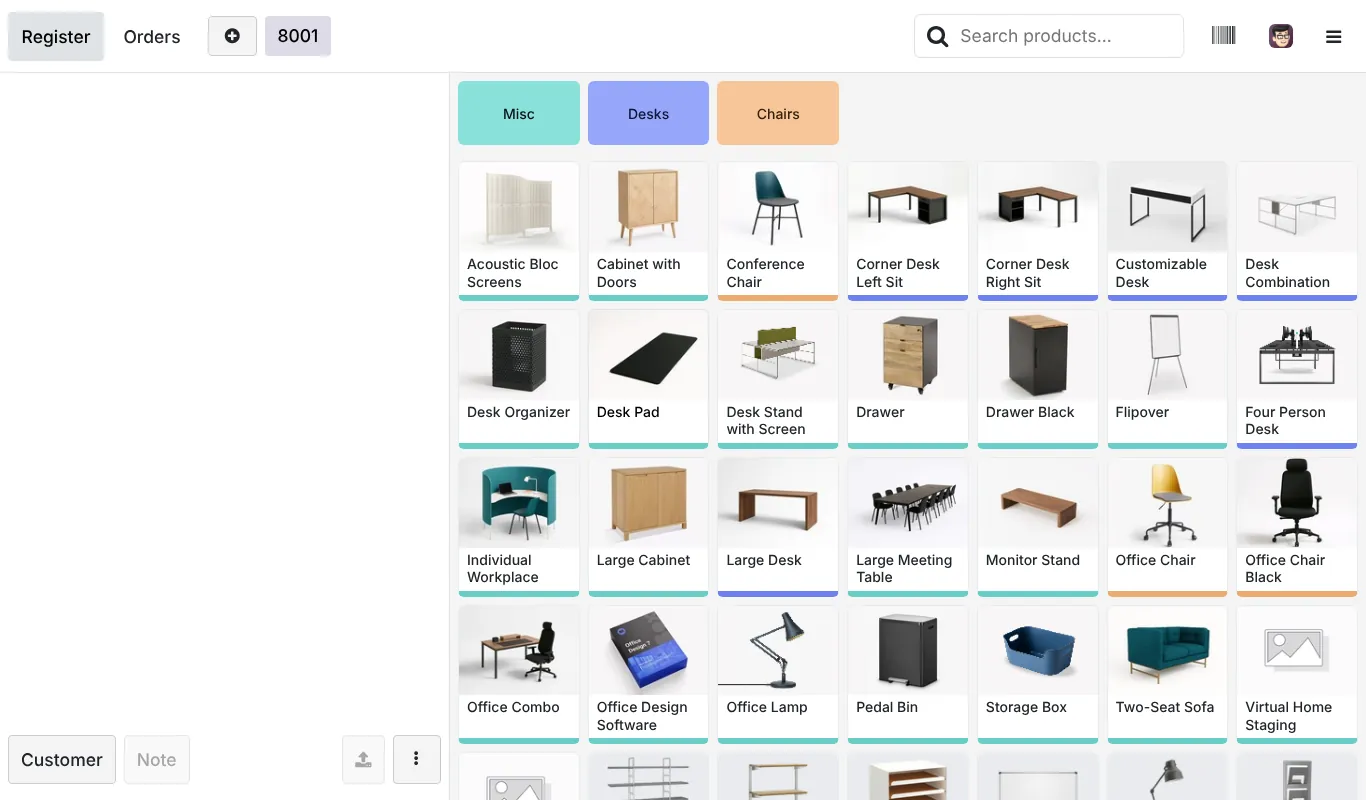
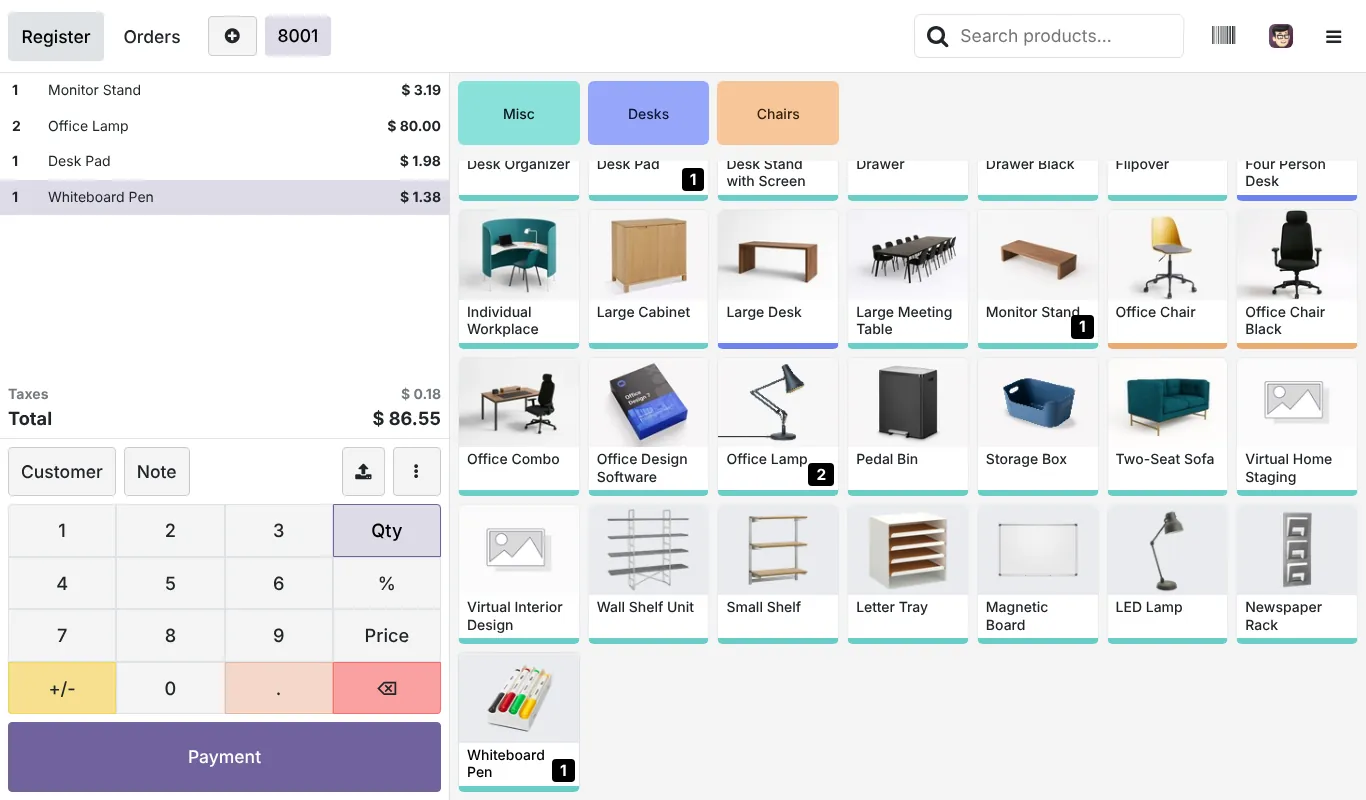
Tap products, or scan barcodes, to add them. Categories along the top filter the grid. The number pad changes quantity, discount or price, if the cashier is allowed to.
3Take the payment
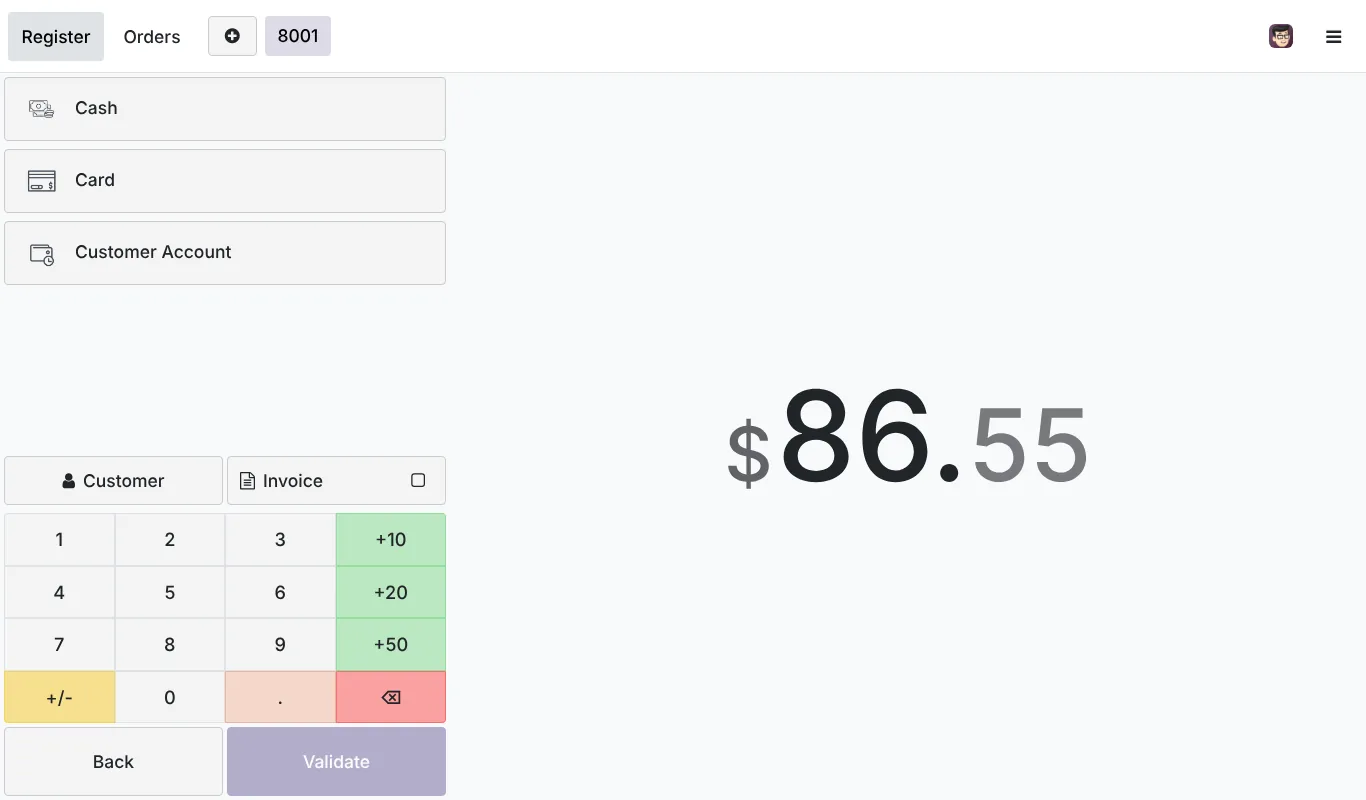
Tap Payment, choose the method (cash, card or customer account) and enter the amount given. Odoo works out the change. Tick Invoice if the customer needs a tax invoice.
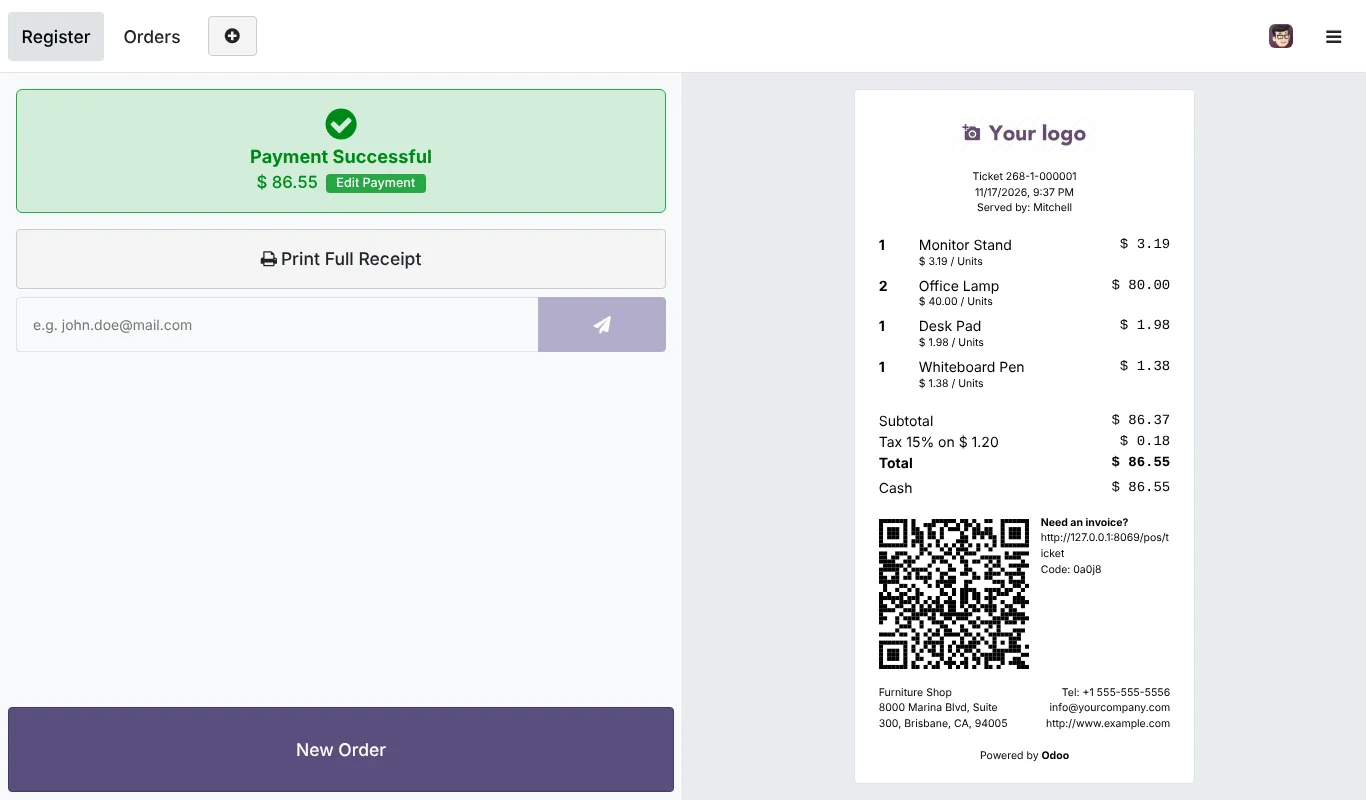
4Print or email the receipt
Tap Validate. The receipt shows the lines, tax and payment, plus a QR code the customer can use to ask for an invoice later.
5Close the register
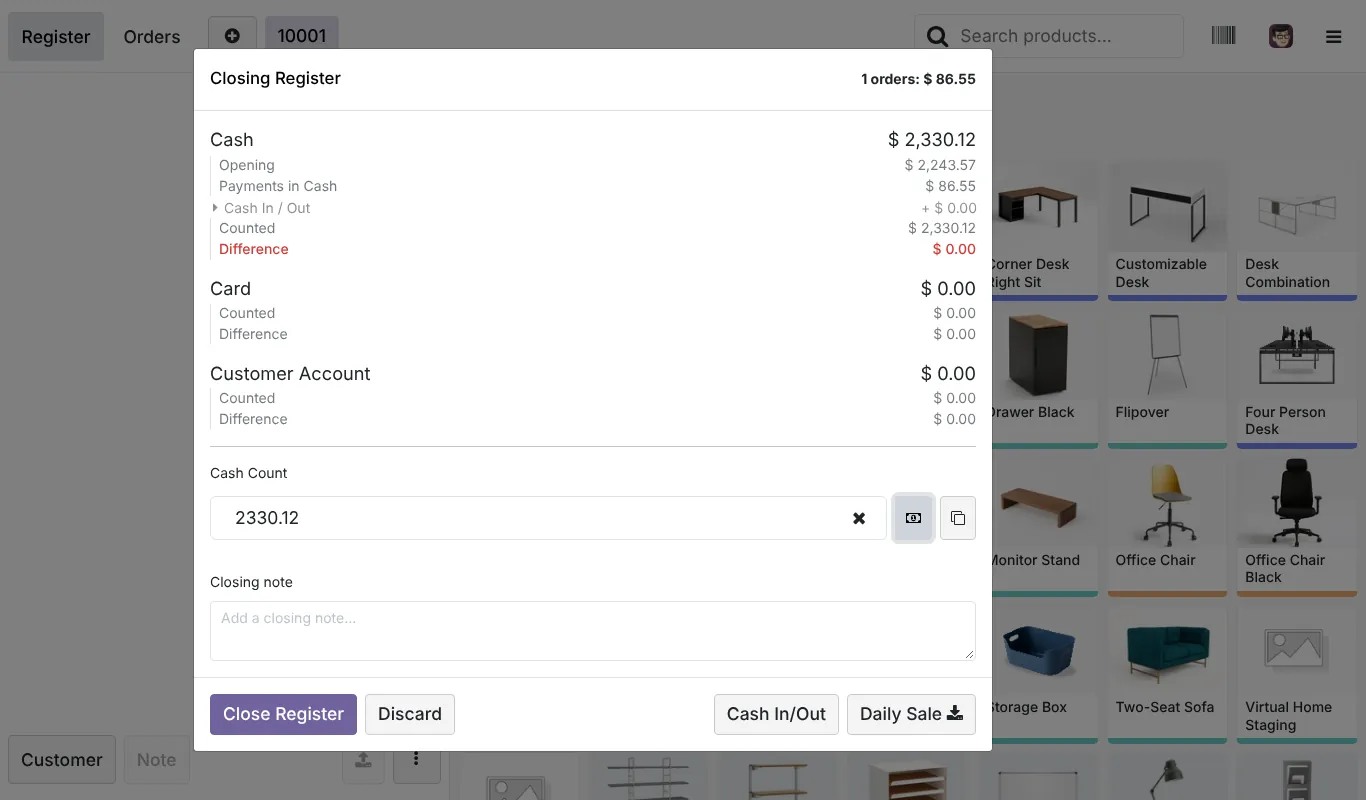
At the end of the day, open the menu and choose Close Register. Count the cash in the drawer and enter it. Odoo compares it with the expected cash (opening float plus cash sales) and shows any difference before you close.
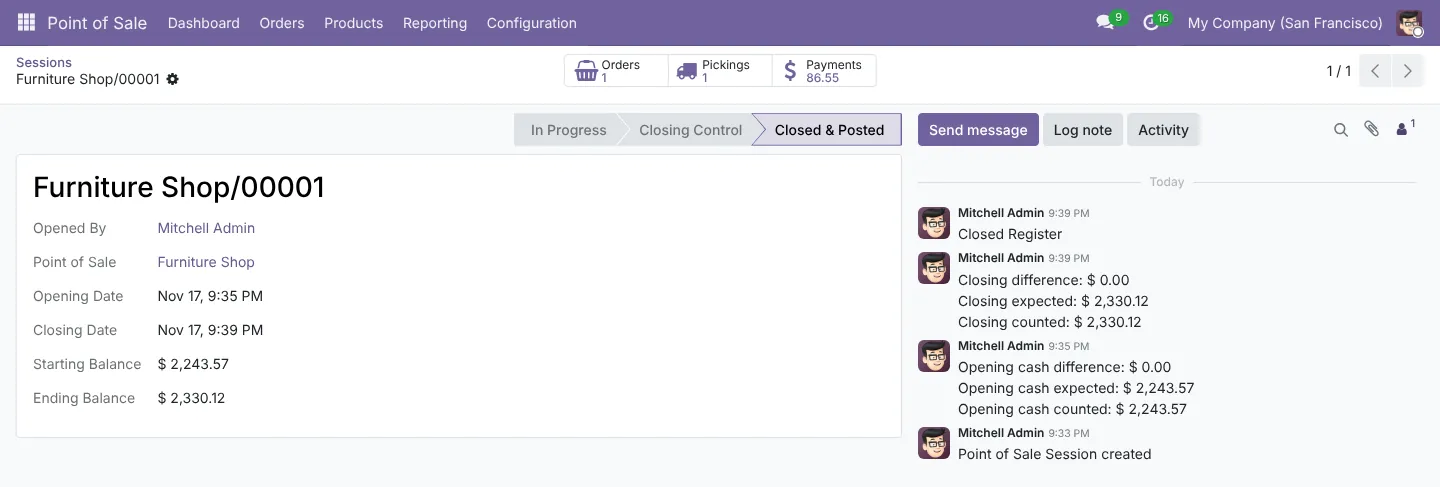
Closing posts the session to accounting: sales, taxes, payments by method, and any cash difference to its own account.
When the internet drops
Odoo Point of Sale keeps working offline once the session is open. Orders are stored in the browser and sync when the connection returns. Don’t close or reload the browser until it has synced.
Saudi Arabia
For Saudi shops, Odoo’s Saudi localisation includes a Point of Sale module for ZATCA simplified tax invoices. See our ZATCA setup guide.
Need help setting this up?
Our Odoo team sets these flows up on Odoo Online, Odoo.sh or your own server, and our accountants check the accounting behind them. See our Odoo services or tell us about your project.
Screenshots captured 17 November 2026 in Odoo 19 Community. Enterprise and later versions can look slightly different. This guide is general information, not advice for your situation.