Every screenshot in this guide was taken by our Odoo team on 17 November 2026 from a live Odoo 19 Community database running Odoo’s demo data, so the company, customer and product names are Odoo samples. Menus and buttons are the same in your database.
The sales flow is where most companies start with Odoo. One record carries through from the first conversation to the cash in the bank, and every document links to the one before it. Here is a real run-through in Odoo 19.
What you need first
- The CRM, Sales, Inventory and Invoicing (or Accounting) apps installed.
- Products with sales prices and taxes.
- A customer contact with an address. Saudi and UAE customers also need their VAT number.
1Work the opportunity in CRM
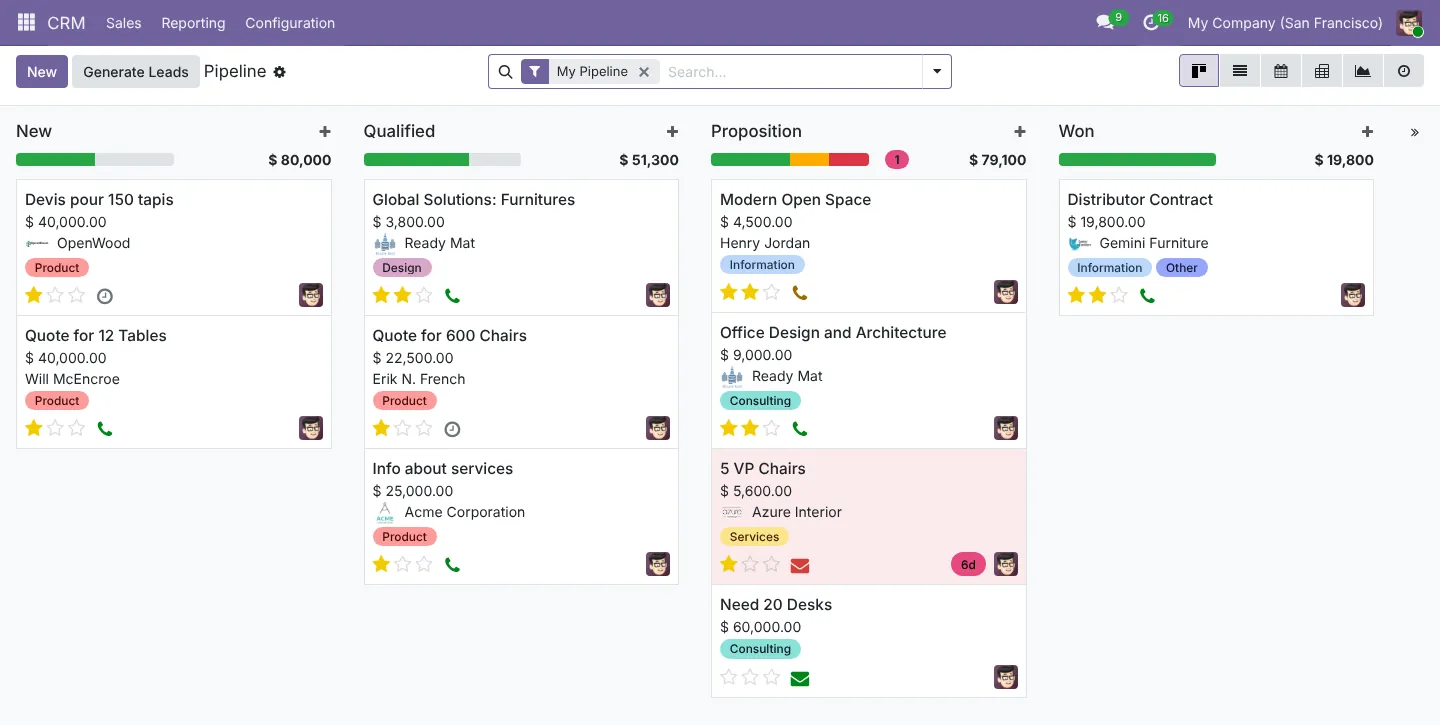
Open . Each card is an opportunity with an expected revenue and a stage. Drag cards between stages as the deal moves.
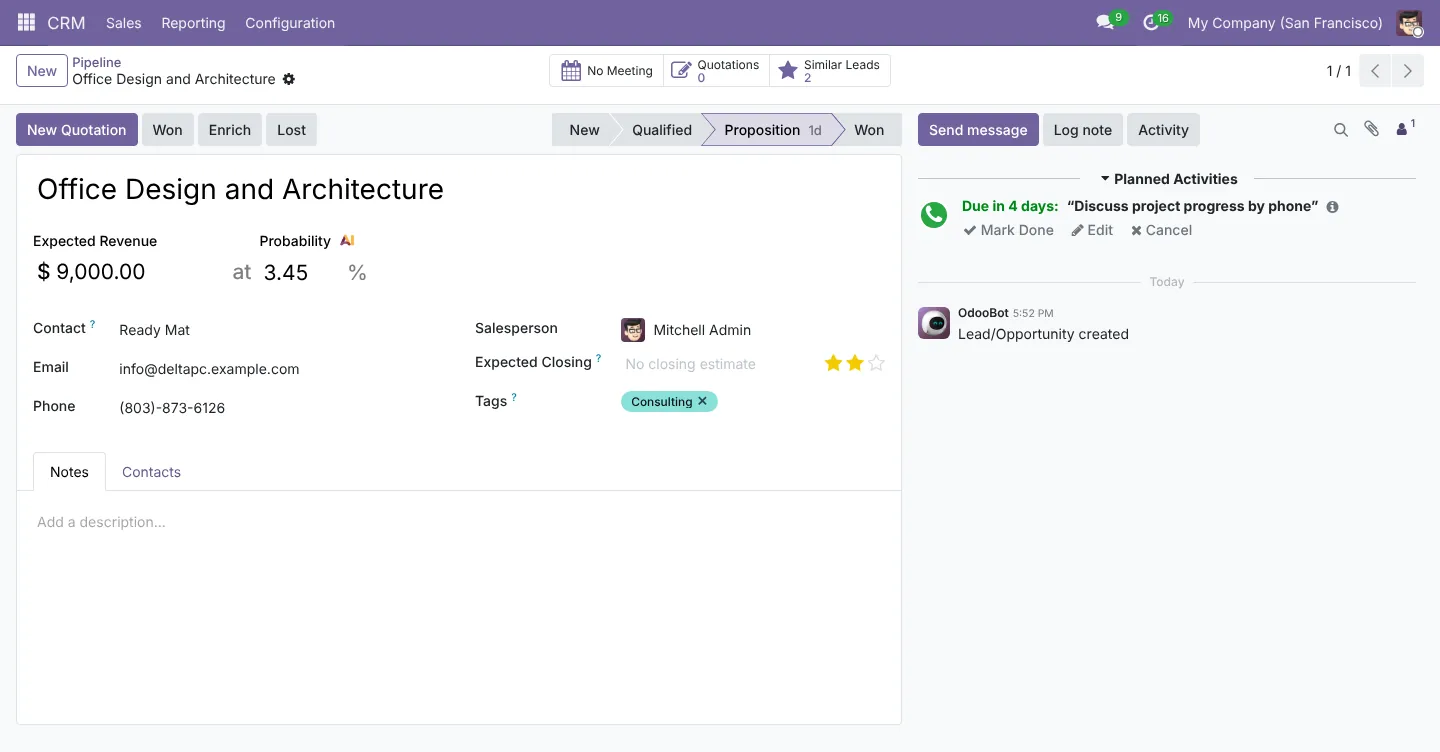
Open the opportunity to log calls, plan activities and see the customer’s history. When the customer is ready for a price, click New Quotation.
2Build and send the quotation
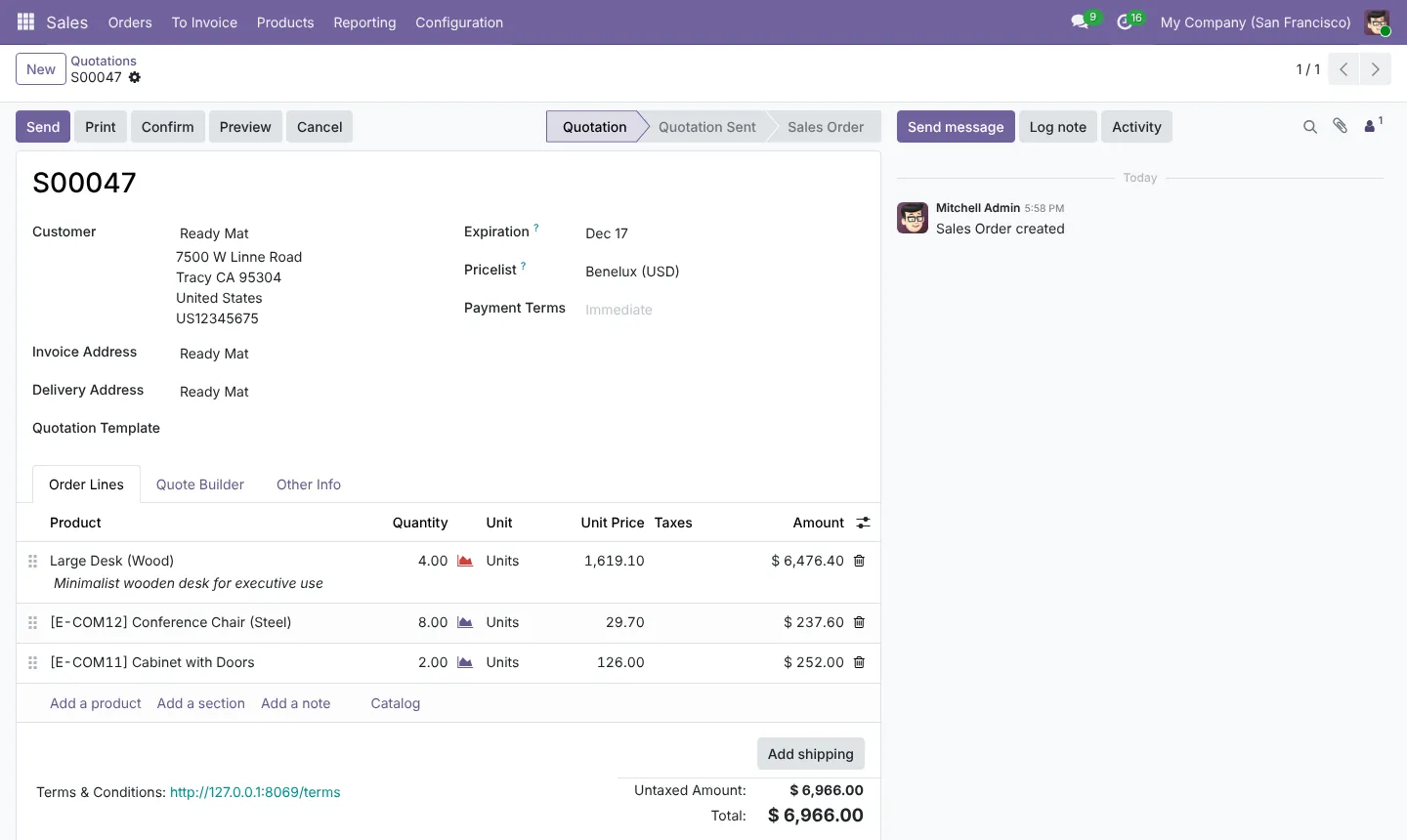
Add products, quantities and any discount. Odoo applies the customer’s pricelist and taxes automatically. Use Send to email a PDF, or let the customer accept and sign online through the portal.
3Confirm the sales order
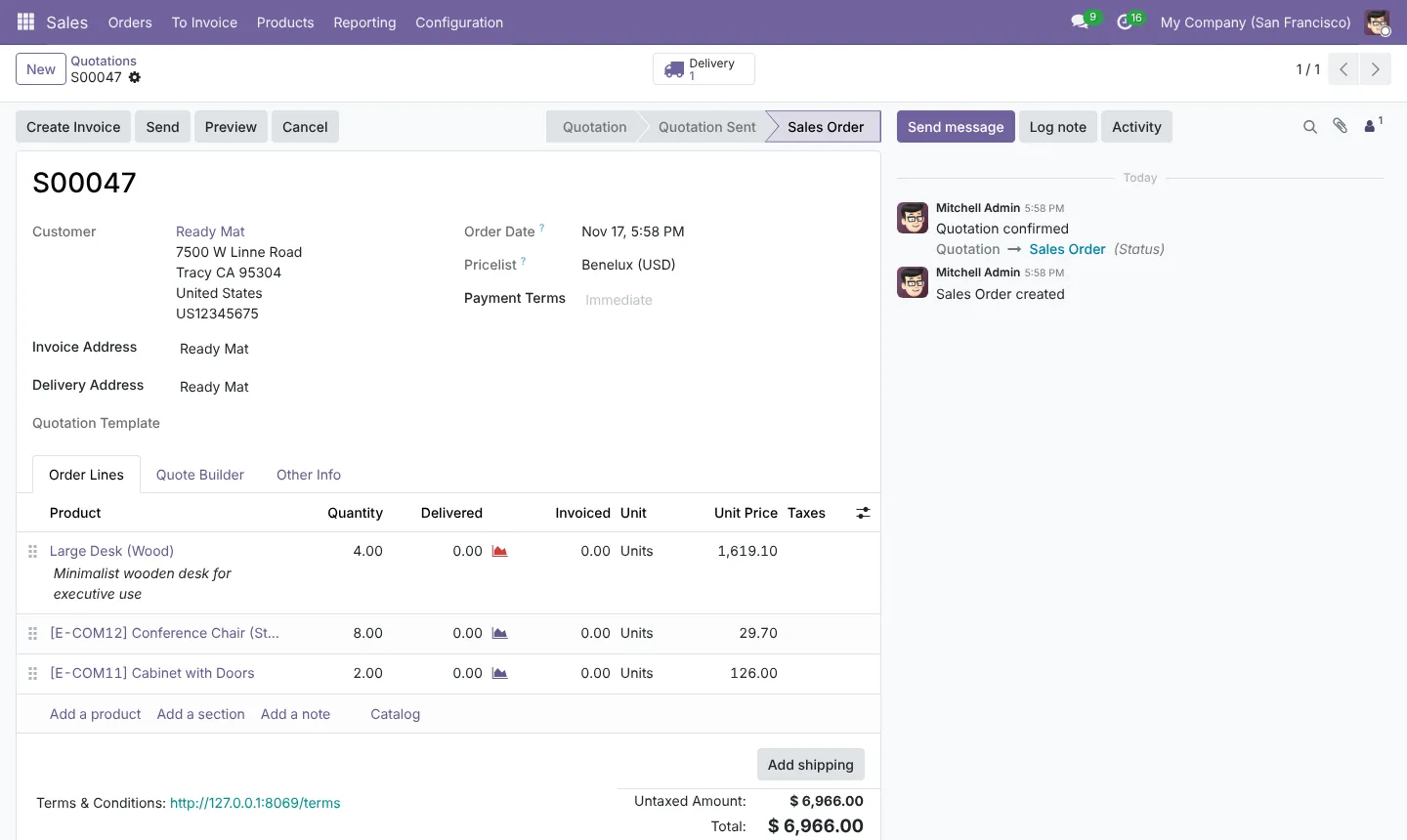
Click Confirm. The quotation becomes a sales order, and Odoo creates the delivery order in Inventory. A Delivery smart button appears at the top.
4Deliver the goods
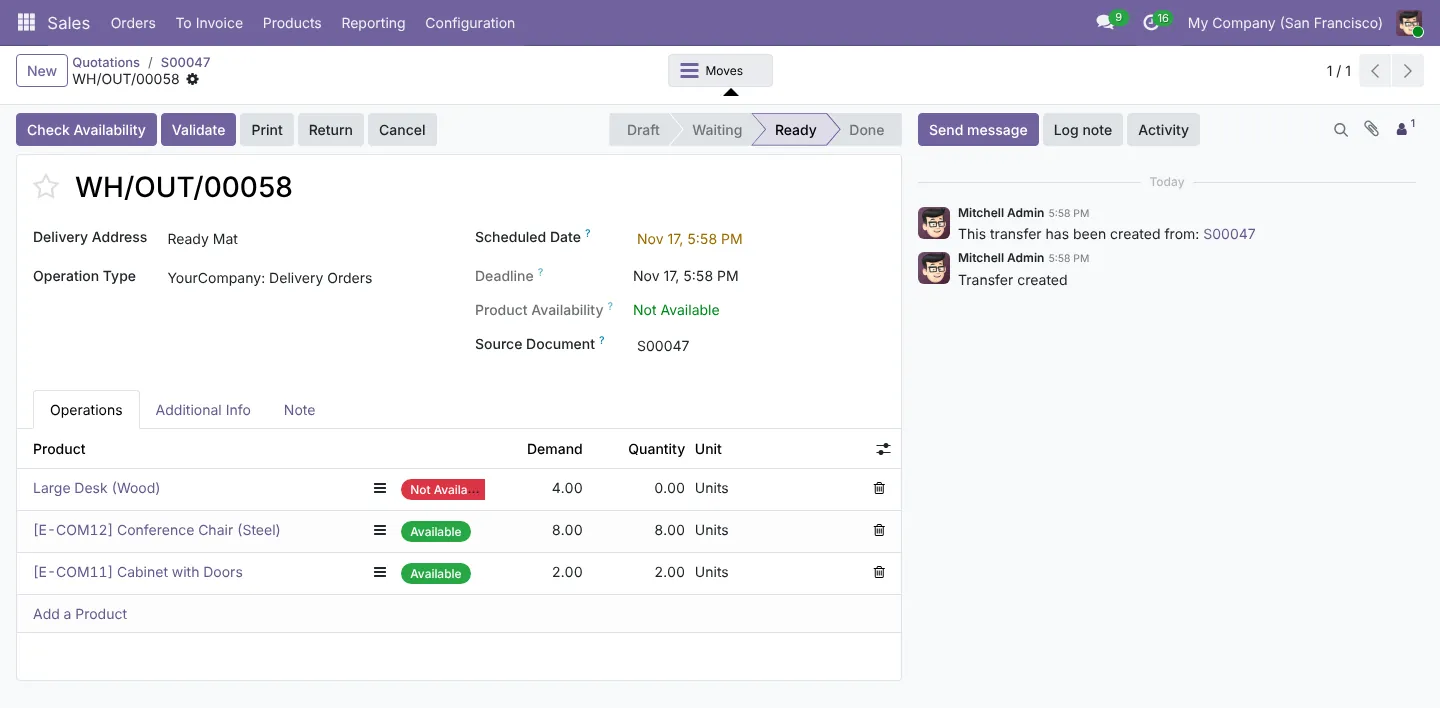
The delivery order shows what is reserved. In our run, one product (the Large Desk) was out of stock, so Odoo marked it Not Available. This is where purchasing comes in: see our guide to purchase orders, receipts and vendor bills.
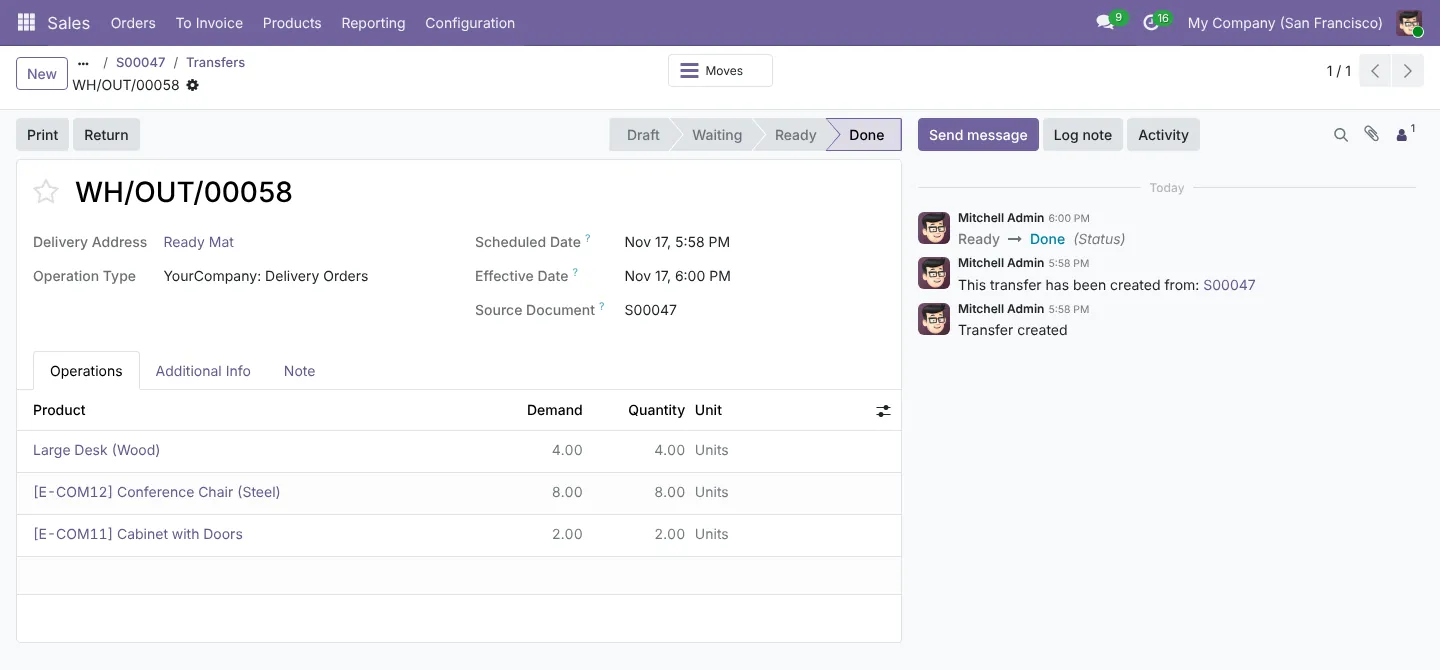
Once the desks arrived, the warehouse validated the delivery and it moved to Done.
5Create and post the invoice
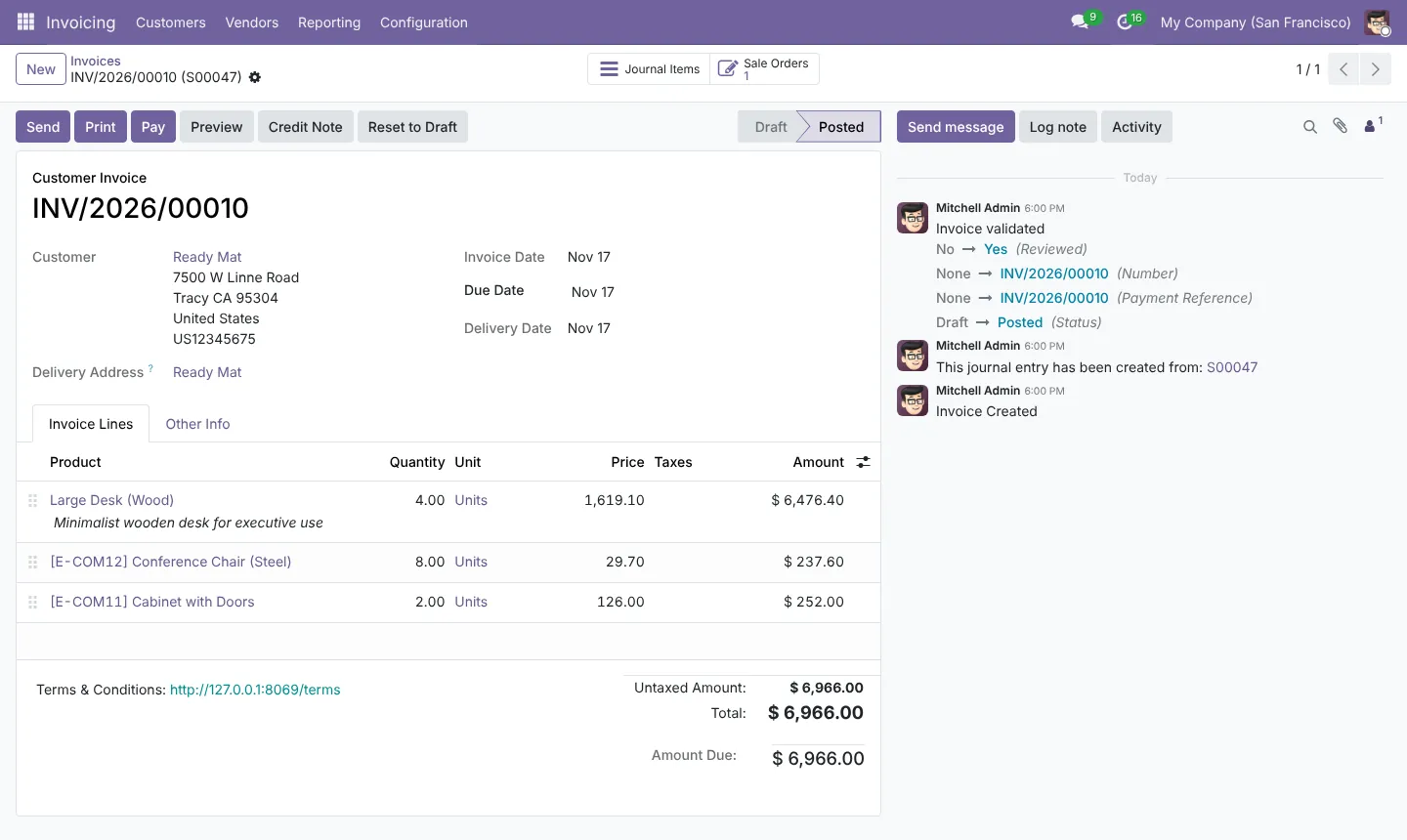
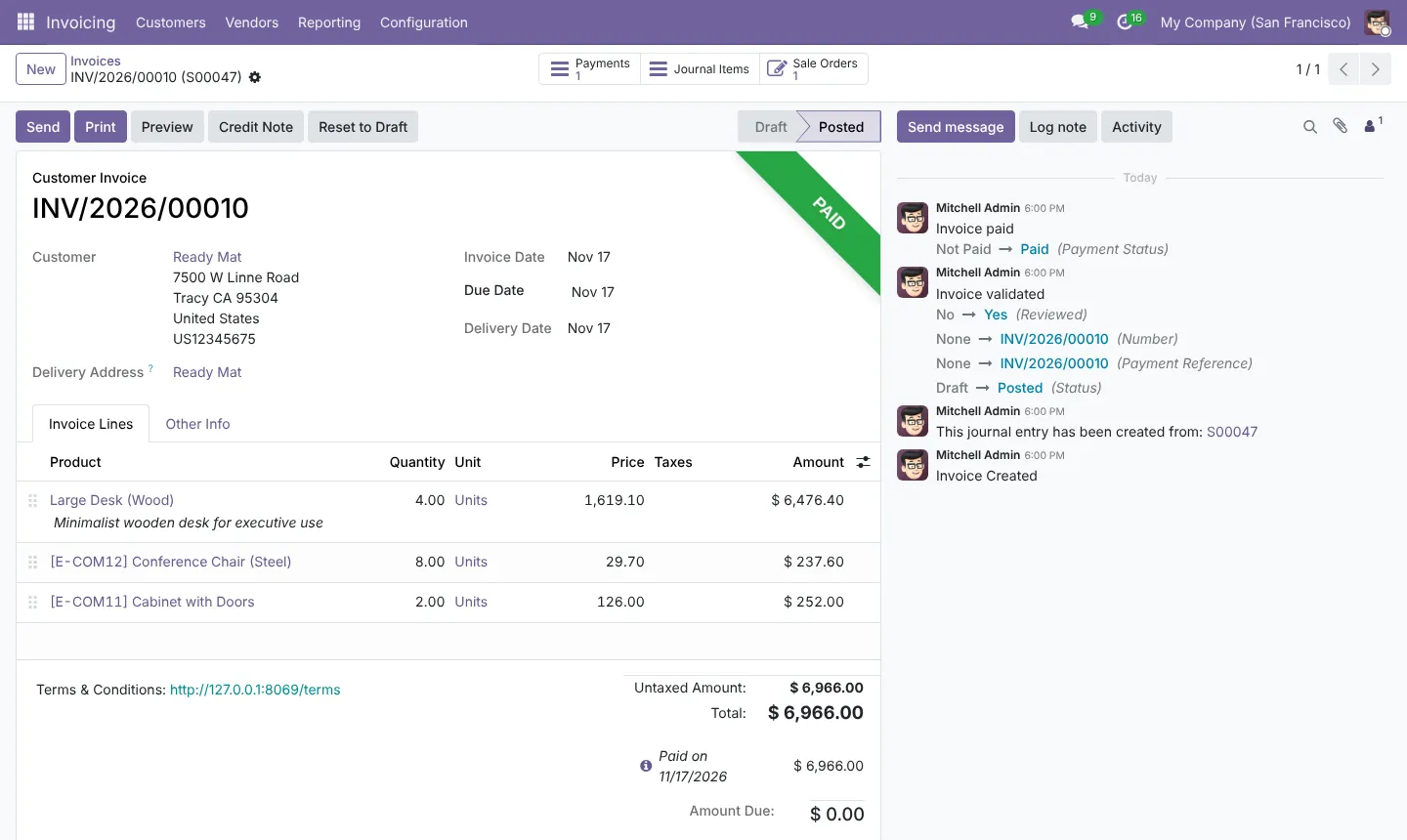
On the sales order, click Create Invoice. For products set to invoice on delivered quantities, Odoo invoices only what has been delivered. Check the draft, then click Confirm to post it and give it its number.
6Register the payment
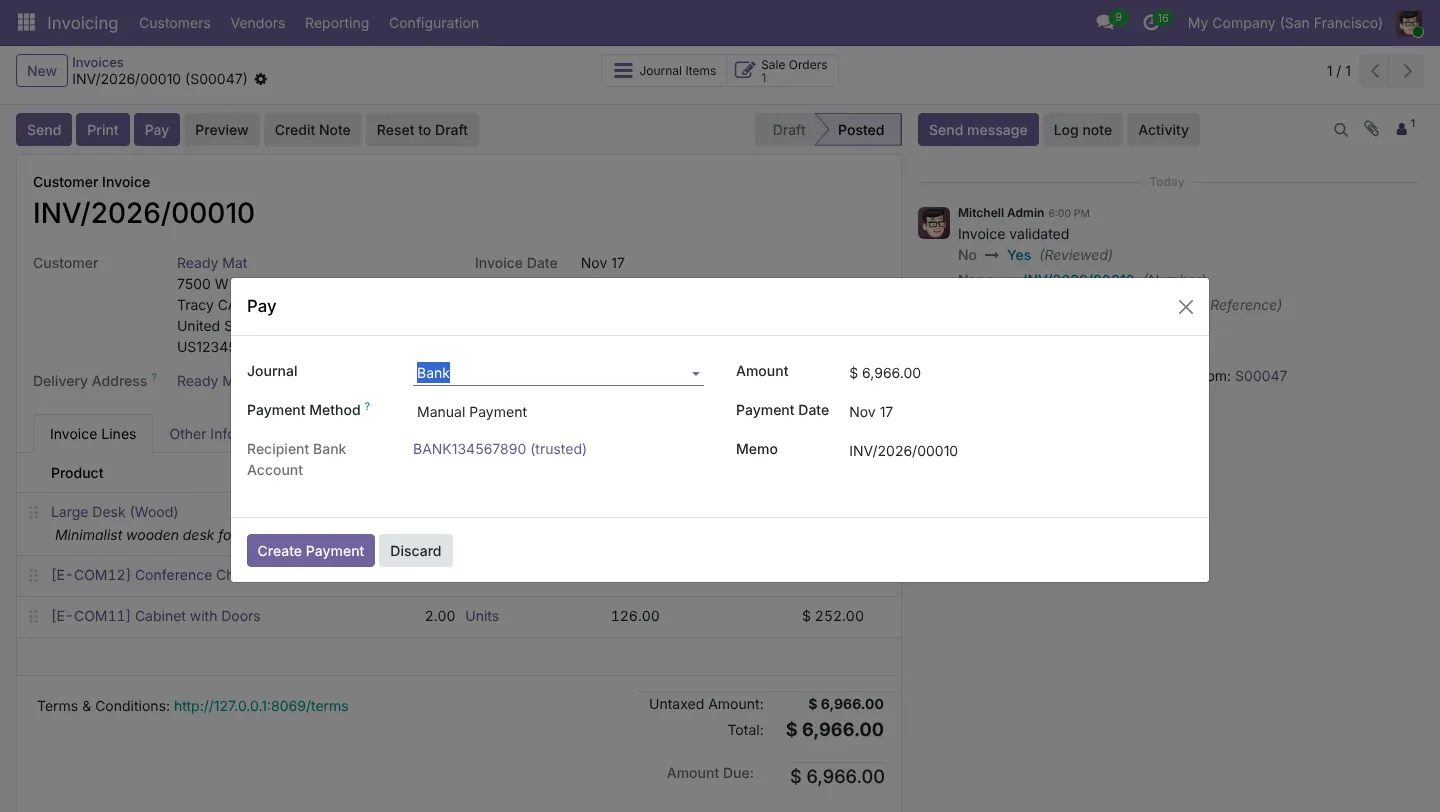
When the money arrives, click Pay. Choose the bank or cash journal and the date, then Create Payment. If you use bank statement reconciliation, you can match the payment there instead.
Common mistakes we fix
- Invoicing before delivery on products that should invoice on delivered quantities, which leads to credit notes later.
- Missing customer VAT numbers, which break Saudi and UAE tax invoices.
- Payments registered on the wrong journal, so the bank never reconciles.
Need help setting this up?
Our Odoo team sets these flows up on Odoo Online, Odoo.sh or your own server, and our accountants check the accounting behind them. See our Odoo services or tell us about your project.
Screenshots captured 17 November 2026 in Odoo 19 Community. Enterprise and later versions can look slightly different. This guide is general information, not advice for your situation.