Every screenshot in this guide was taken by our Odoo team on 17 November 2026 from a live Odoo 19 Community database set up for a sample Saudi company, so the names, VAT and registration numbers are test values. Menus and buttons are the same in your database.
In Saudi Arabia, VAT-registered businesses must issue electronic invoices that meet ZATCA’s requirements. Phase 2 (integration) connects your invoicing system to ZATCA’s Fatoora platform. Odoo includes this in its Saudi localisation. Here is what the setup looks like in Odoo 19.
Step by step
1Install the Saudi localisation
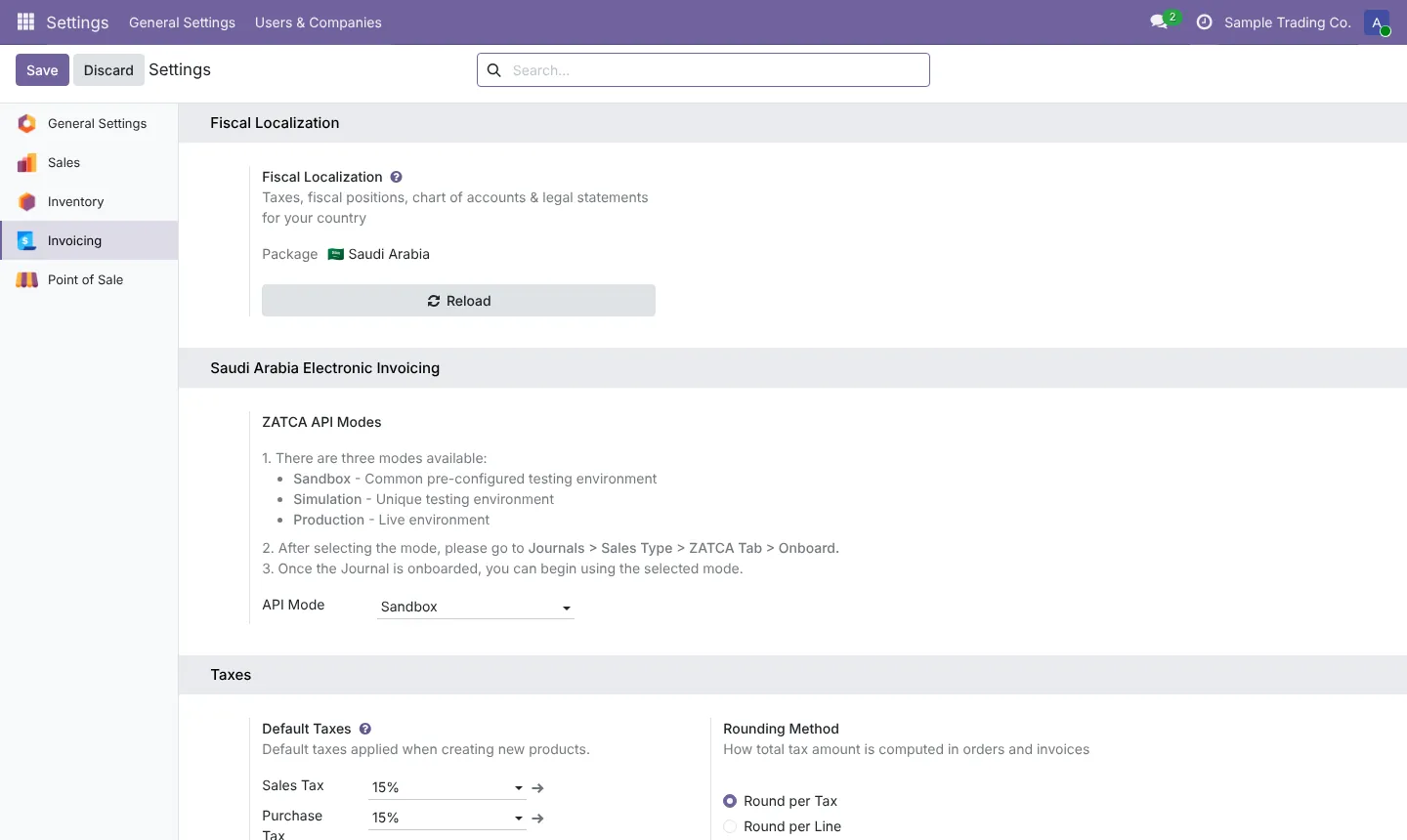
Your company needs the Saudi Arabia fiscal localisation package and the Saudi e-invoicing module. In , the Fiscal Localization section shows the package in use.
2Choose the ZATCA API mode
In the same section, choose the mode:
- Sandbox: ZATCA’s shared testing environment, for trying the setup.
- Simulation: your own testing environment on the Fatoora portal, for testing with your real registration.
- Production: live invoicing reported to ZATCA.
3Complete the company details
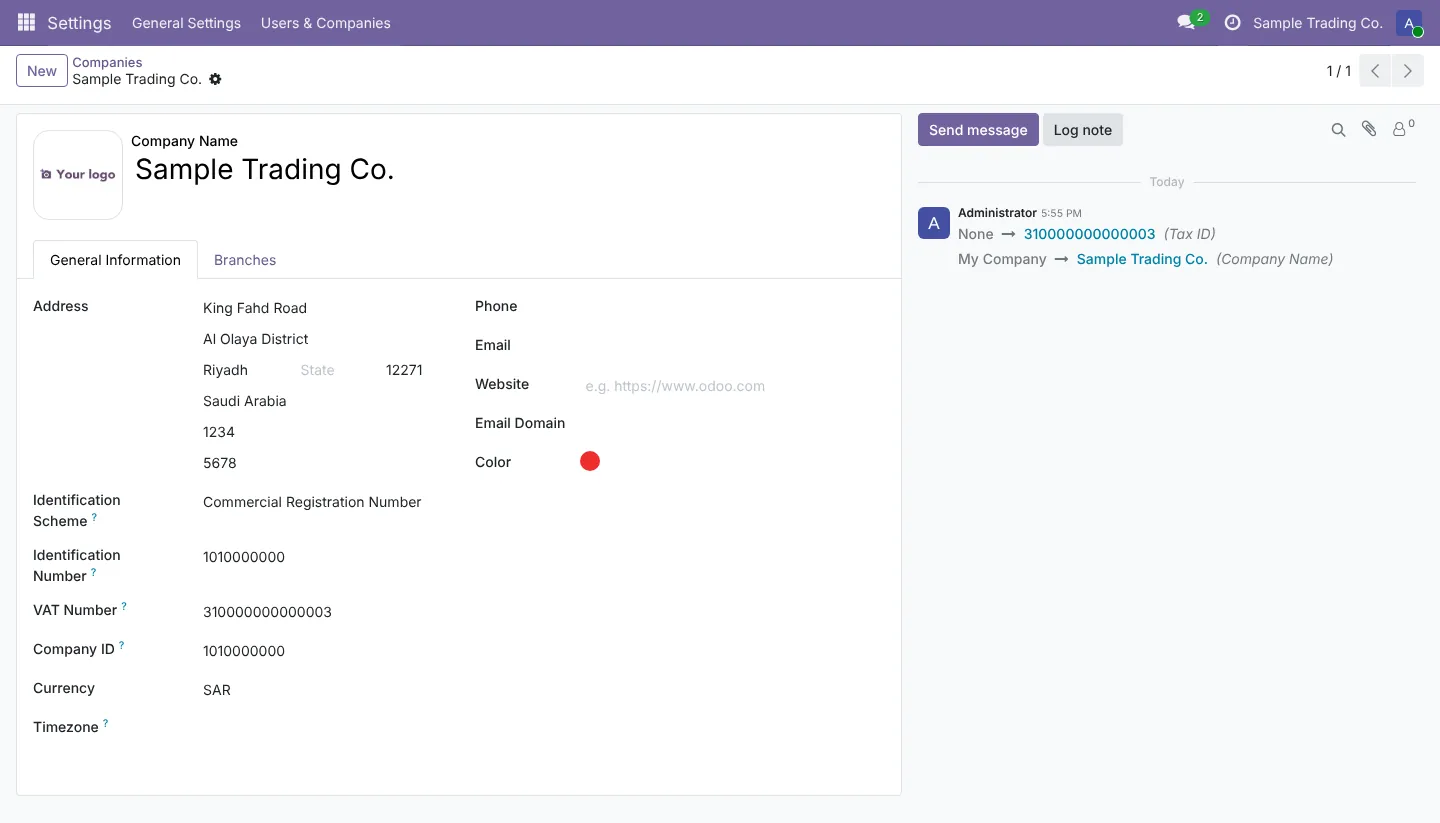
ZATCA rejects invoices with incomplete seller details. On the company, fill in the full Saudi address, including the building number and plot identification, plus the VAT number (15 digits), the identification scheme (for example, the commercial registration number) and the state.
4Onboard the sales journal
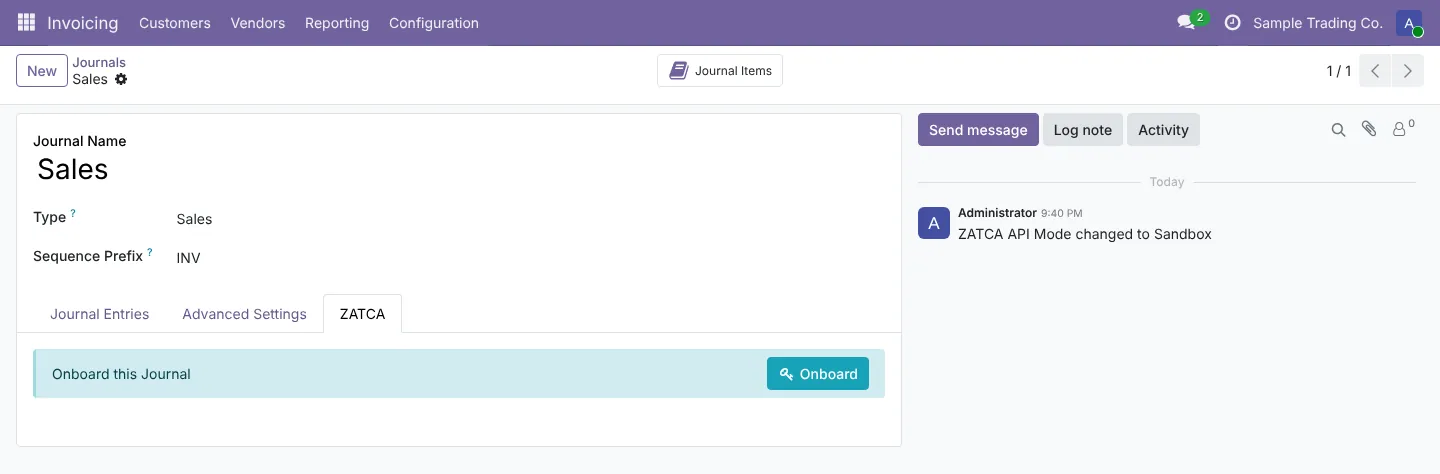
Open , open your sales journal and go to the ZATCA tab. Click Onboard.
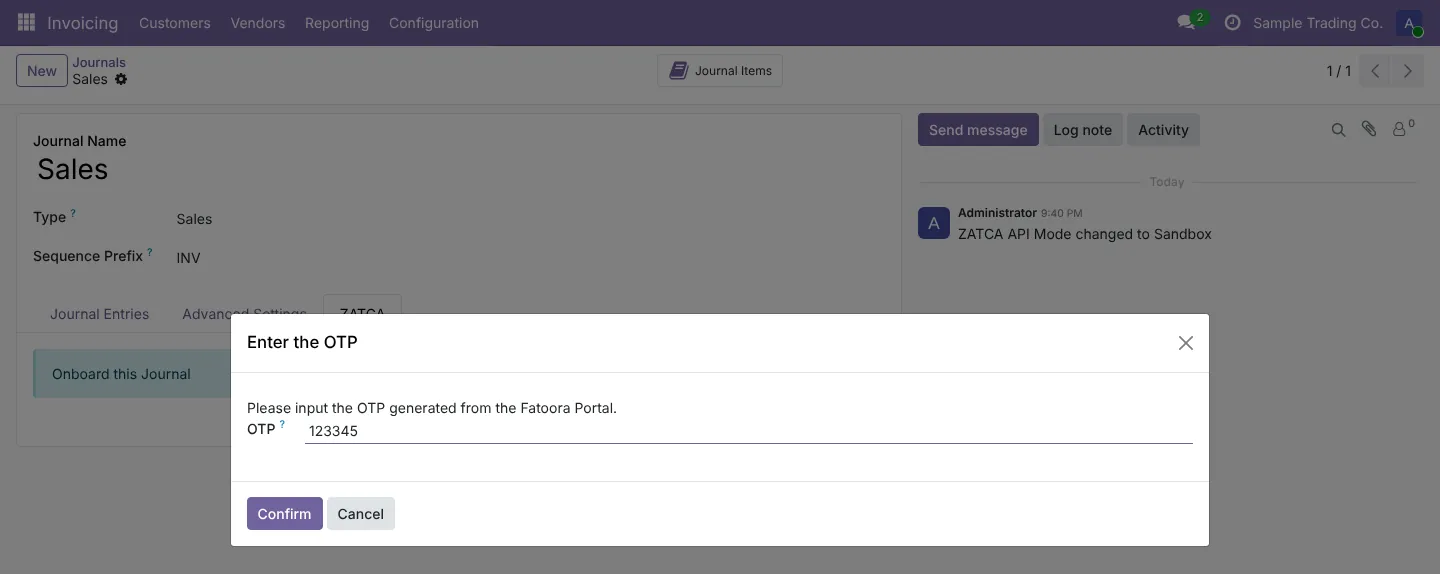
Odoo asks for a one-time password. In Simulation and Production, you generate it in the Fatoora portal. In Sandbox mode, Odoo pre-fills ZATCA’s test code. Odoo then creates the private key and certificate signing request, gets the compliance certificate, runs ZATCA’s compliance checks and requests the production certificate.
5Create the invoice
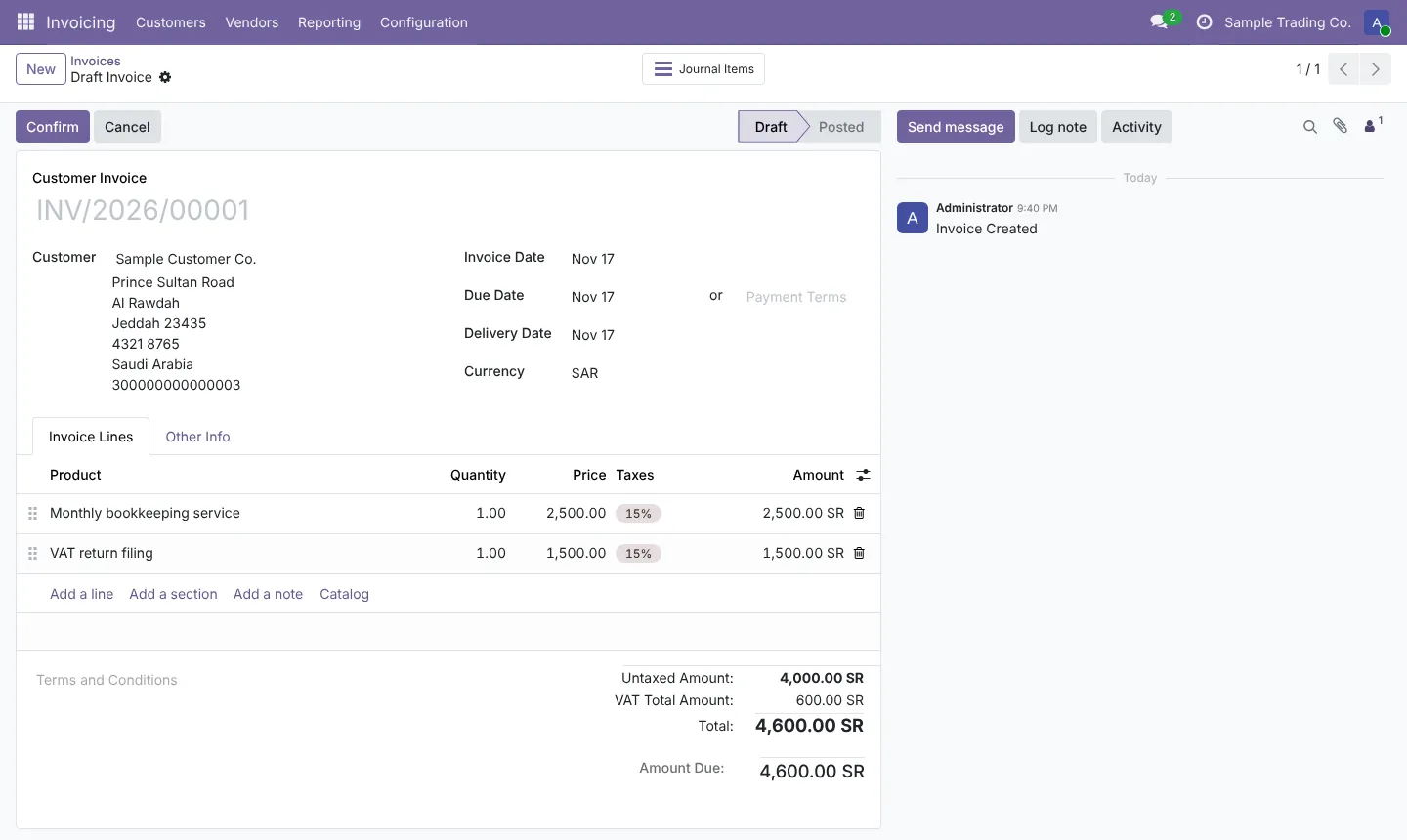
Customer invoices in Saudi riyals show VAT at 15% and the delivery date that ZATCA requires. Customers who are VAT-registered businesses need their VAT number and full address, because their invoices are standard tax invoices.
What happens if you skip a step
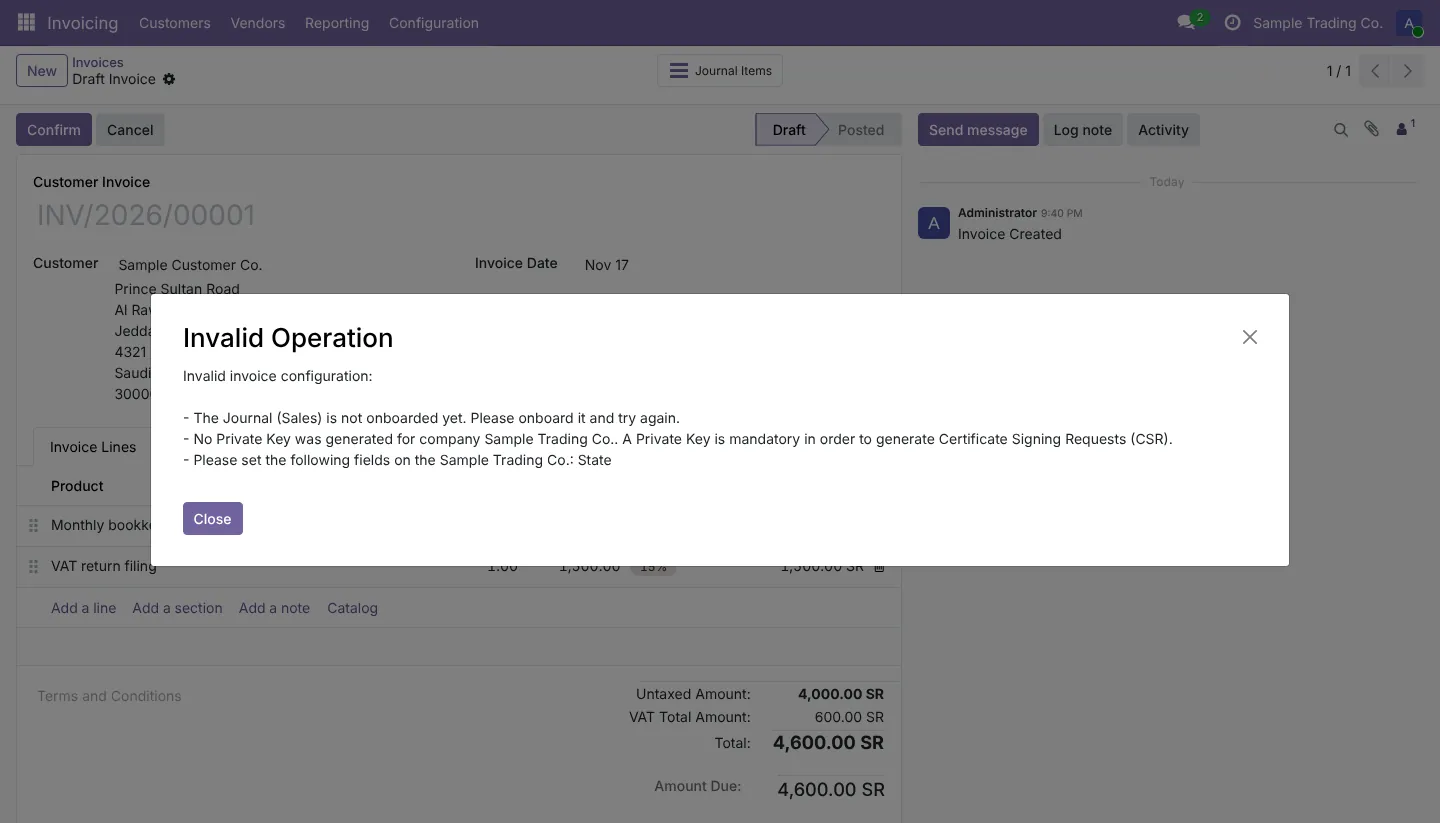
Odoo checks the setup when you confirm an invoice. In our test we tried to post before onboarding, and Odoo stopped us with a clear list: the journal is not onboarded, no private key exists yet, and the company’s state field is empty. That check saves you from sending invoices ZATCA would reject.
Our honest note
We took these screenshots without connecting to ZATCA, so the onboarding stops at the OTP step here. In a live project, we complete onboarding in Simulation, check ZATCA’s responses, and only then move to Production. Our Saudi tax team also checks VAT codes, zero-rated and exempt supplies, and credit note reasons.
Need help setting this up?
Our Odoo team sets these flows up on Odoo Online, Odoo.sh or your own server, and our accountants check the accounting behind them. See our Odoo services or tell us about your project.
Screenshots captured 17 November 2026 in Odoo 19 Community. Enterprise and later versions can look slightly different. This guide is general information, not advice for your situation.